Microsoft Copilot is quickly becoming one of the most useful productivity tools available to Microsoft 365 business users but with multiple Copilot options available, it’s not always obvious where to start or which version is right for business use.
In this Tech Tips guide, we cover the basics of Microsoft Copilot: how to install and access it, how it integrates with Microsoft 365 apps, using it effectively, and what business users need to understand about privacy and client data.
Installing and Accessing Microsoft Copilot
For users licensed with Microsoft 365 Copilot, access is typically straightforward.
Most users will find Copilot:
- Built into Microsoft 365 desktop apps
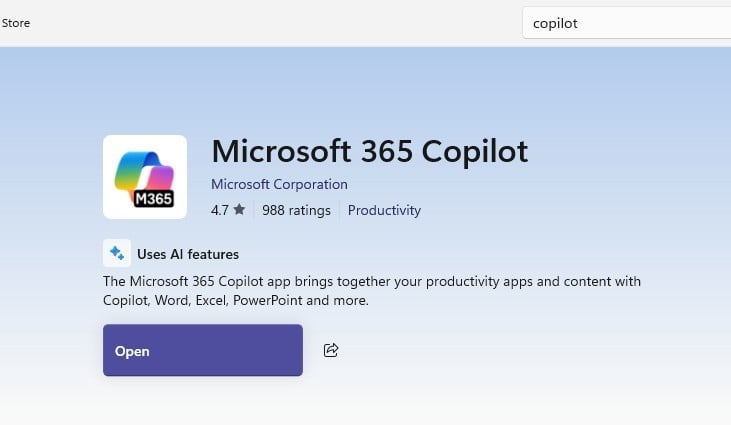
- Available via the Microsoft 365 Copilot app downloadable from the Microsoft Store
- Integrated into Outlook and Teams automatically
Copilot signs in using your work account and operates within your existing Microsoft 365 environment, no separate login is required.
How Copilot Integrates with Microsoft 365 Apps
One of Copilot’s biggest strengths is that it works inside the tools your team already uses.
-
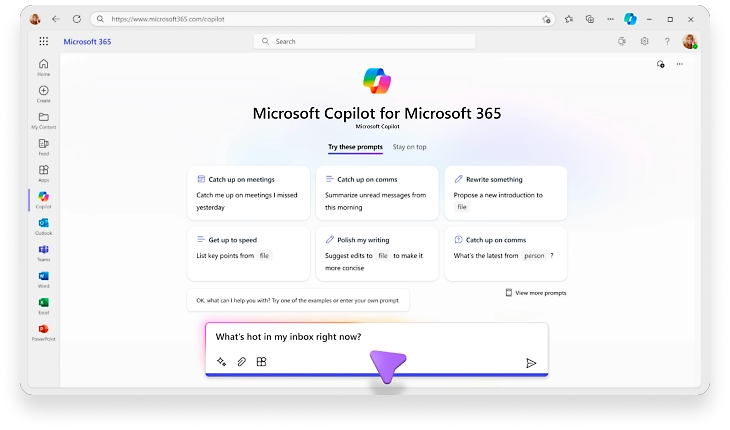
Copilot in Word: Automates drafting, editing, and summarising, enabling users to generate comprehensive documents with
brief prompts. It
 can incorporate information from organisational databases, offering suggestions for tone adjustments and content improvements.
- Copilot in Excel: Transforms data analysis by allowing natural language queries. It suggests new formulas, identifies trends, and creates visualisations, facilitating a deeper exploration of data without altering it.
- Copilot in PowerPoint: Assists in converting ideas or documents into visually appealing presentations. It streamlines the process of layout adjustments, text reformatting, and animation timing, enhancing the storytelling aspect of presentations.
-
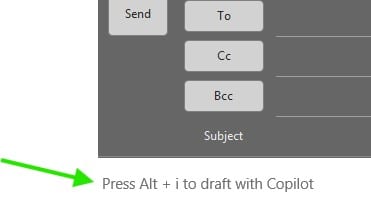
Copilot in Outlook: Optimises email management by s
 ummarizing
complex threads and crafting professional responses from brief notes. It offers flexibility in adjusting tone and length for more
effective communication.
ummarizing
complex threads and crafting professional responses from brief notes. It offers flexibility in adjusting tone and length for more
effective communication.
- Copilot in Teams: Enhances meeting productivity with real-time summaries and action items, ensuring effective collaboration and clarity in team discussions.
 can incorporate information from organisational databases, offering suggestions for tone adjustments and content improvements.
 ummarizing
complex threads and crafting professional responses from brief notes. It offers flexibility in adjusting tone and length for more
effective communication.
ummarizing
complex threads and crafting professional responses from brief notes. It offers flexibility in adjusting tone and length for more
effective communication.
How to Use Copilot Effectively
Copilot works best when you treat it like a junior assistant, not a mind reader.
Clear instructions lead to better results. Why not check out one of our previous blogs on using Copilot the blog has a specific focus on giving it the best prompts.
Instead of short prompts, try:
- “Summarise this document for a non‑technical business owner.”
- “Rewrite this email to sound professional but friendly.”
- “Create a checklist based on the attached document.”
Providing context such as a file, email or meeting, it dramatically improves accuracy.
Privacy, Client Data and Business Responsibility
A common concern we hear is whether Copilot is safe to use with client information.
For paid Microsoft 365 Copilot, the key point is:
- It follows the same privacy, security and compliance rules as the rest of Microsoft 365
- Data is not shared publicly or used to train general AI models
However, Copilot will surface anything a user already has access to - which means good permission hygiene still matters.
Before enabling Copilot widely, businesses should review:
- SharePoint and OneDrive sharing settings
- Team and mailbox permissions
- Access levels across users and departments
Final Thoughts
Microsoft Copilot can deliver huge productivity gains for businesses when it’s deployed correctly and used with the right expectations. Microsoft are keen to get more business users onto its paid Microsoft 365 version and often runs promotional discounts as incentive to sign up, if you are interested in seeing the latest deals get in contact with us.